
Getting started
Your first post in minutes
Jolt makes it incredibly easy for anyone to quickly create and maintain a professional-quality blog for their Shopify store. Here's how to get going.
-
1Install
Install Jolt from the Shopify App Store
Head to the Jolt listing on the Shopify App Store and click Install. Jolt opens right inside your Shopify admin — there's nothing to code or configure.
The Pro plan includes a 14-day free trial, so you can try everything before you pay.
Install Jolt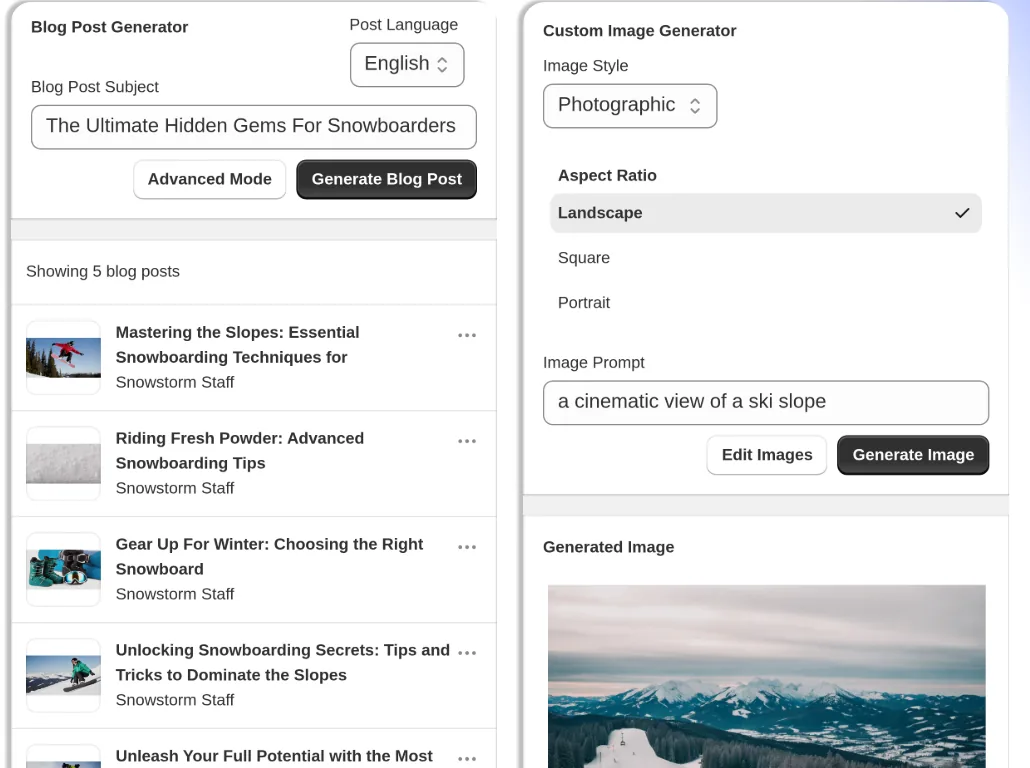
-
2Generate
Generate your first article
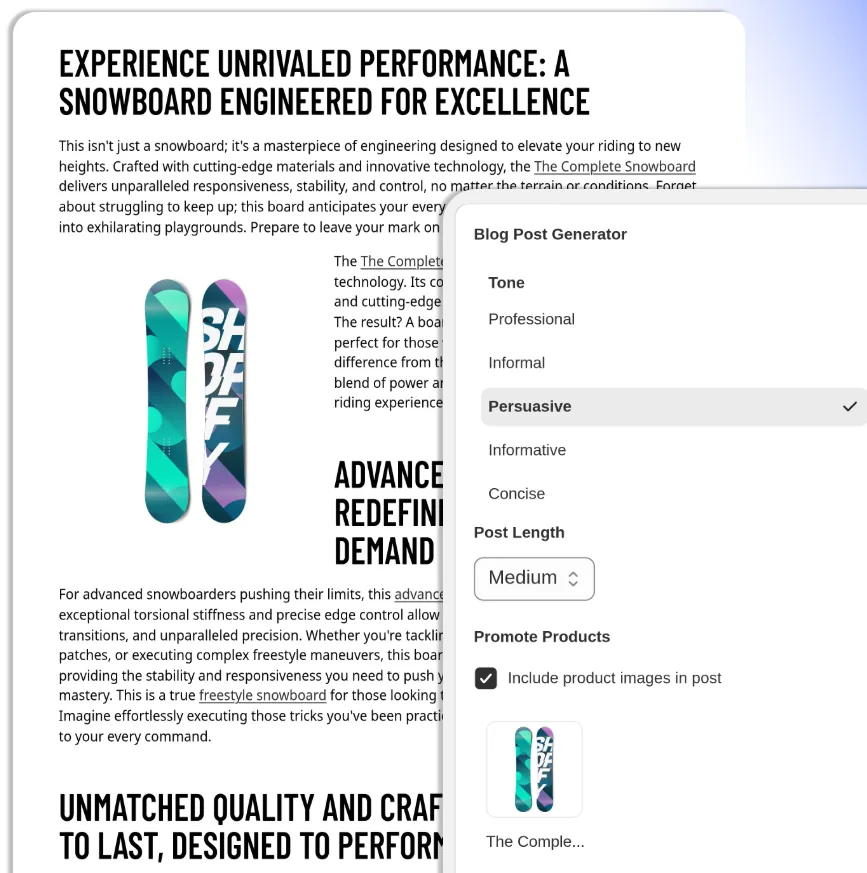
To get started, simply enter a prompt in the article generation box and click Generate.
Open Advanced Mode to choose the tone and length of your post, and pick products to promote — Jolt will weave them into the article with images and links.
Tip: For the best results, use as much detail as possible in your prompt.
-
3Review
Review, edit and publish
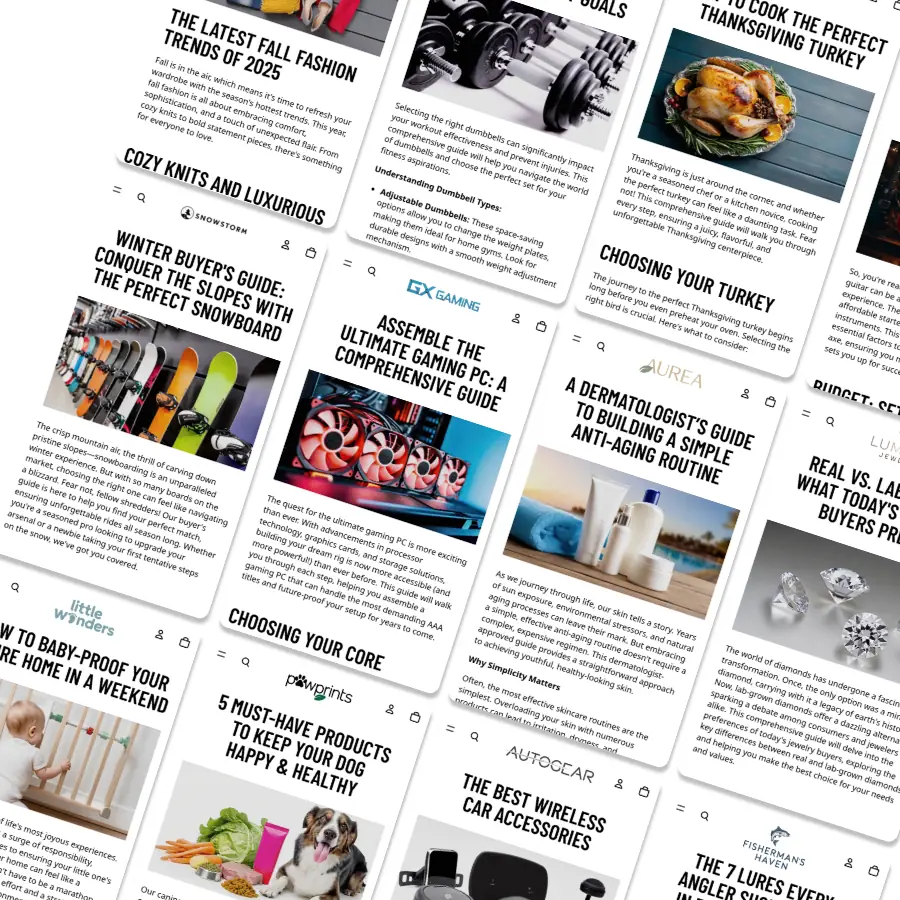
Once an article is generated, it will not be visible on your site until you manually make it visible — so nothing goes live before you're happy with it.
Click on a generated article at any time to edit it in the Shopify blog editor. When it's ready, make it visible and it's live on your store.
Want it hands-free? On the Pro and Ultimate plans you can schedule automated blog posting and let Jolt keep your blog fresh.
-
4Images
Add images to any article
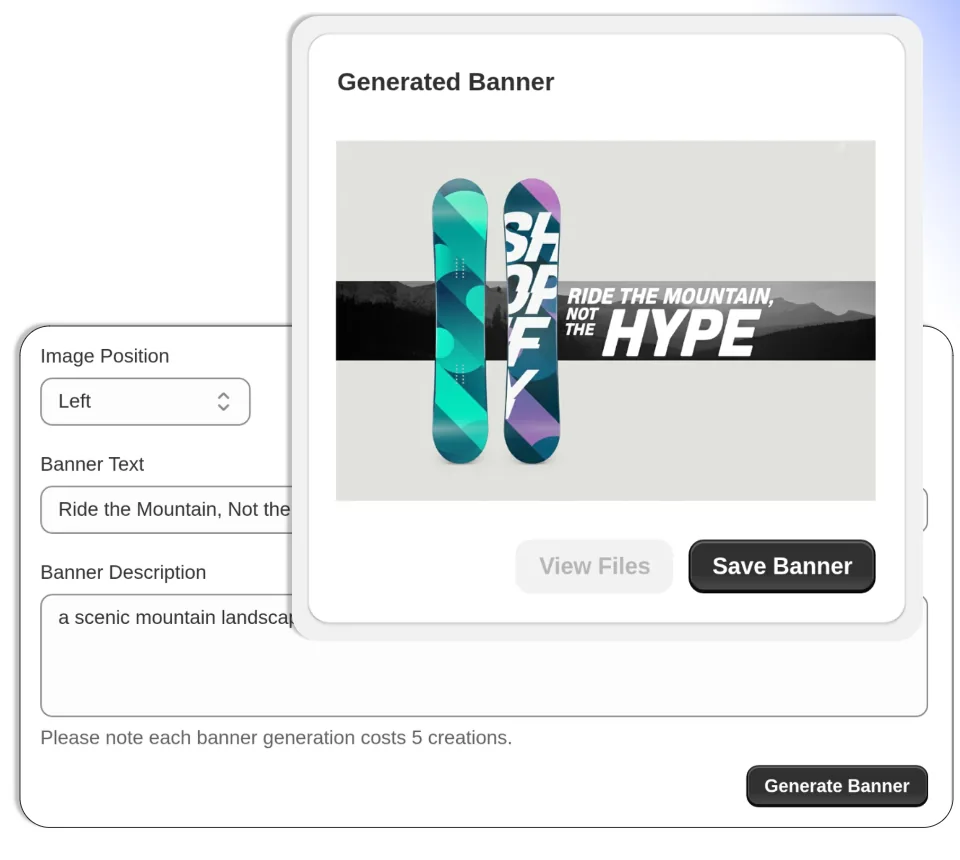
Images can be generated for any article, whether it was created by Jolt or written manually. Simply click Generate Image next to an article and enter a prompt for the image you'd like.
Once the image is generated you can either save it to the article or click generate again to create a different image based on the same prompt.
On the Ultimate plan you can also create custom banners with your own text, built around your products.
-
5Grow
Track the keywords that matter
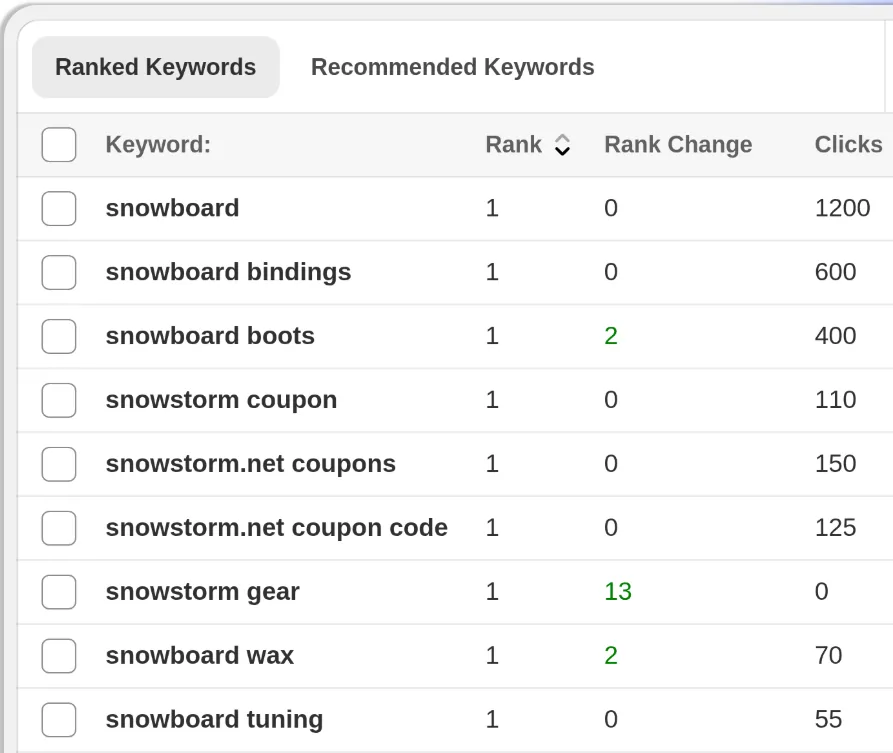
Use Jolt's keyword tools to see where your shop ranks, how rankings change over time, and which recommended keywords are worth targeting next — then generate posts around them.
Need a hand? Chat with us or email support@joltcreate.com — we're happy to help you get set up.
Ready to launch your blog?
Start your 14-day free trial and publish your first AI-written post in minutes.